When a member replies to your job listing, you will receive a system-generated email that has a personal message from the member with some limited contact details. On that email we suggest that you contact the member directly through the private messaging system within the portal. This ensures that your contact details remain private up until the time you choose to provide them to an applicant you have chosen to talk to or offer the opportunity to assist.
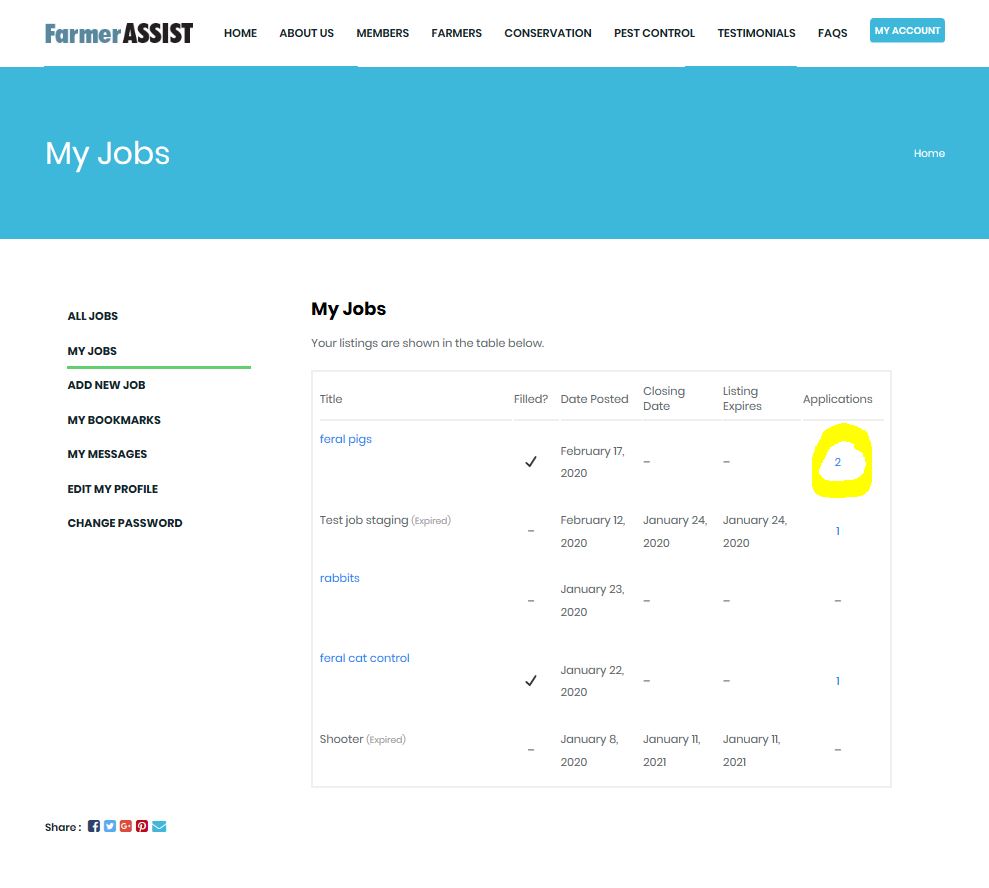
Alternatively, if you have had success in receiving many applications it may be easier to log into the website and view all applications via your ‘My Jobs’ page. This is the same page that you use to edit details of your listing or mark it as filled. In the table, under the ‘Applications’ title you can see how many applications have been submitted. In the example below the number of applications is two.
Job Application
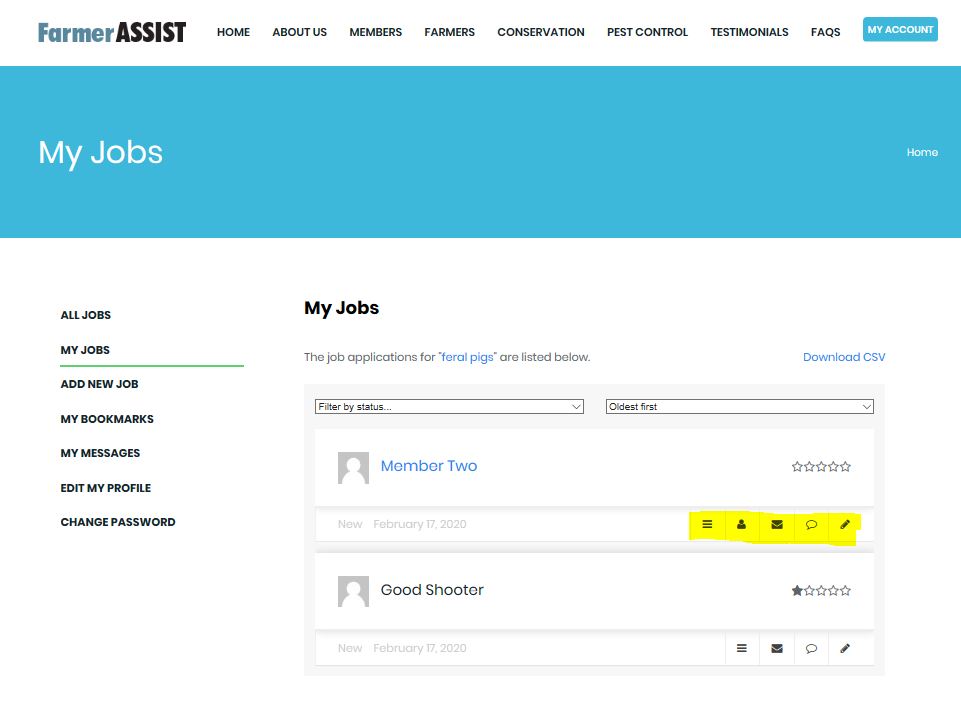
Once you click on the number of applications received it will display each application with the first received being at the top of the list. In the below image there are some icons highlighted that you can click on to see and do a variety of things.
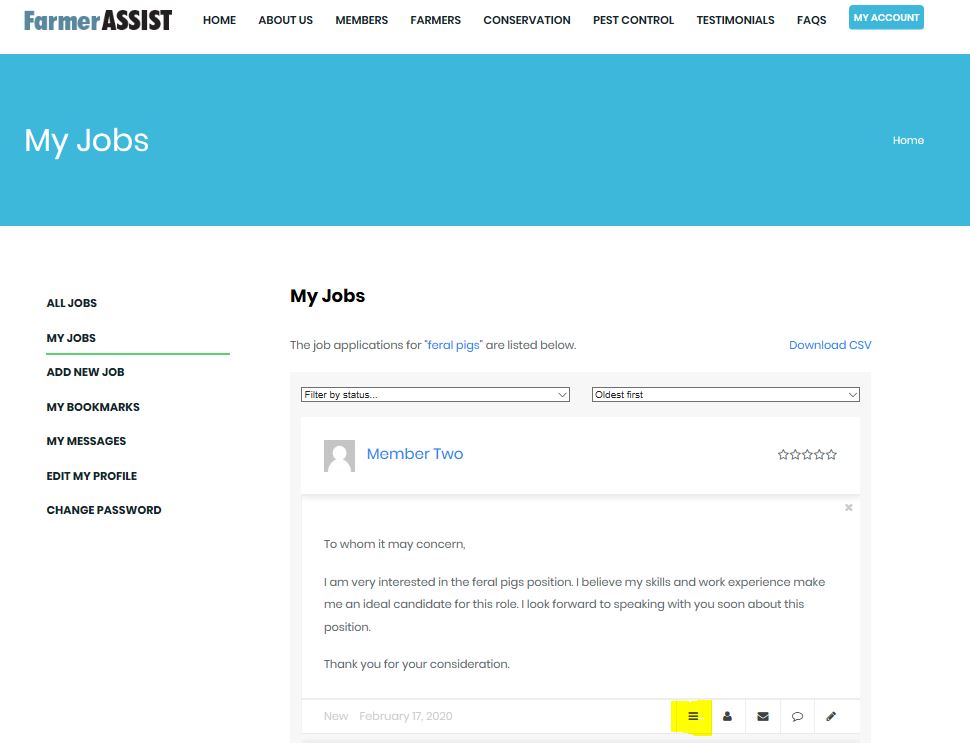
Details about read the application message
From left to right these icons allow you to view and do a number of things. First icon (details) allows you to read the application message sent.
My Messages
The second button will only be visible if the member has created an online resume. By clicking this button you will see a copy of their resume.
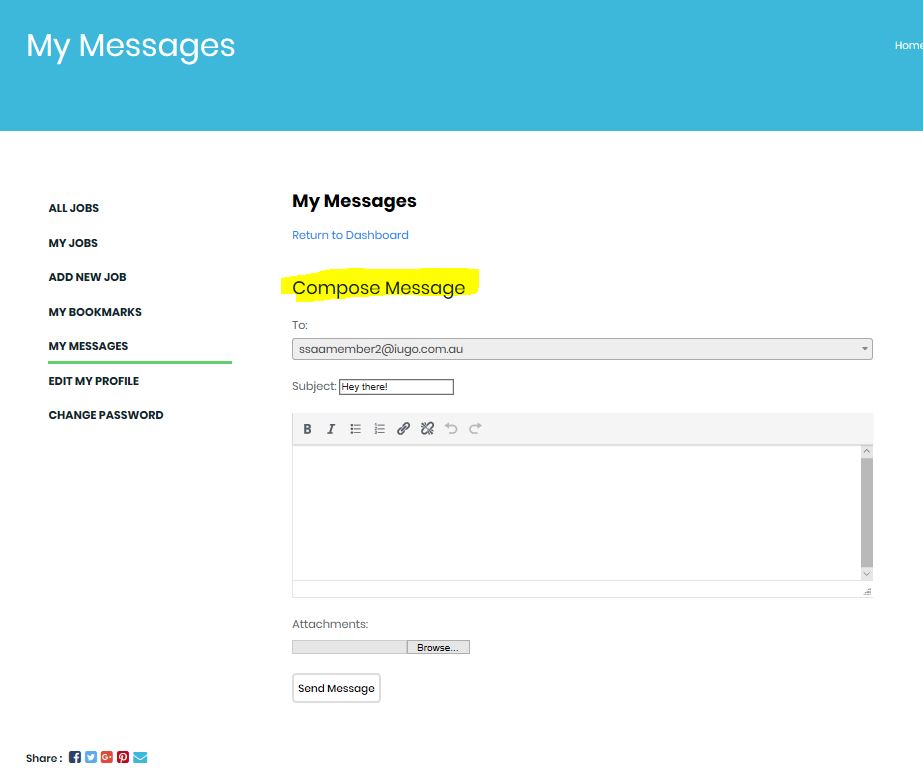
The third icon allows you to send a private message directly to the applicant. Once you click on this icon you will be taken to the below page connected to your ‘My Messages’. Here you can view all messages that you have sent and received from applicants you have started to communicate with.
Shortlist applicants to contact
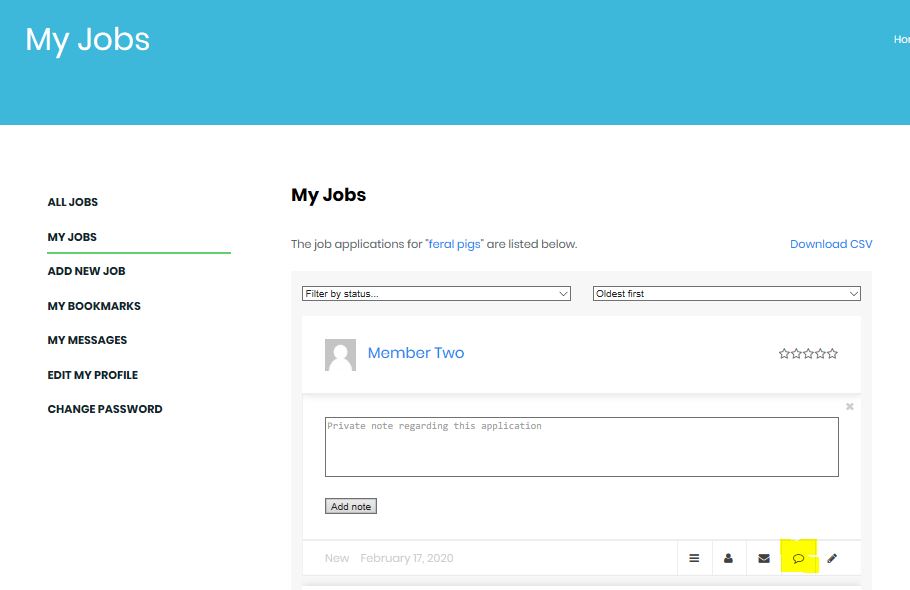
The next icon allows you to make notes to yourself in response to the selected application. This could be anything such as your thoughts about the applicants suitability to the task to help you with shortlisting applicants to contact.
Selecting Application Status
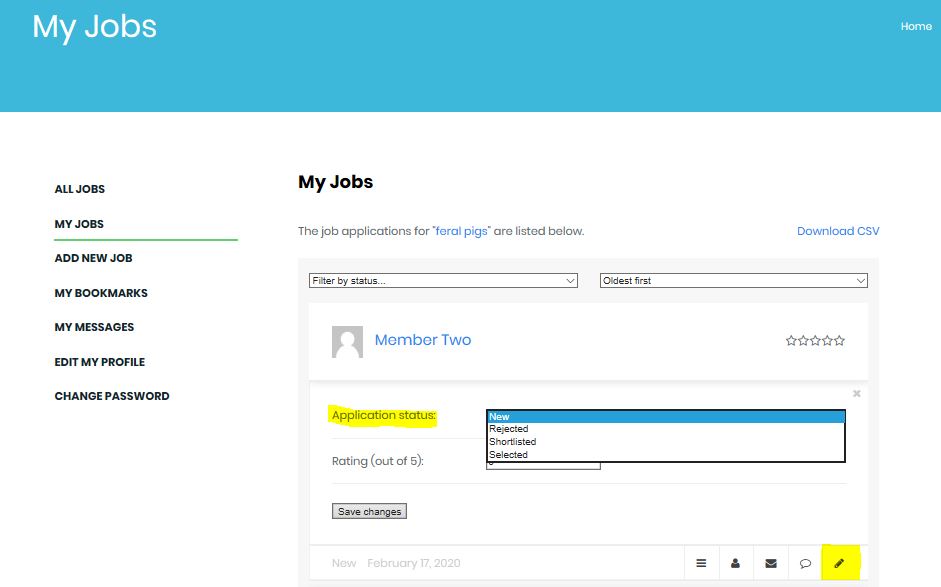
Clicking on the final icon allows you to do two very important things. Firstly you can manage the applications status by selecting ‘Rejected’, ‘Shortlisted’ or ‘Selected’. This will allow the system to log which members you have shortlisted and/or selected for your job as well as enable those rejected to receive an email notifying them that they have not been selected for the job.
Job Rating
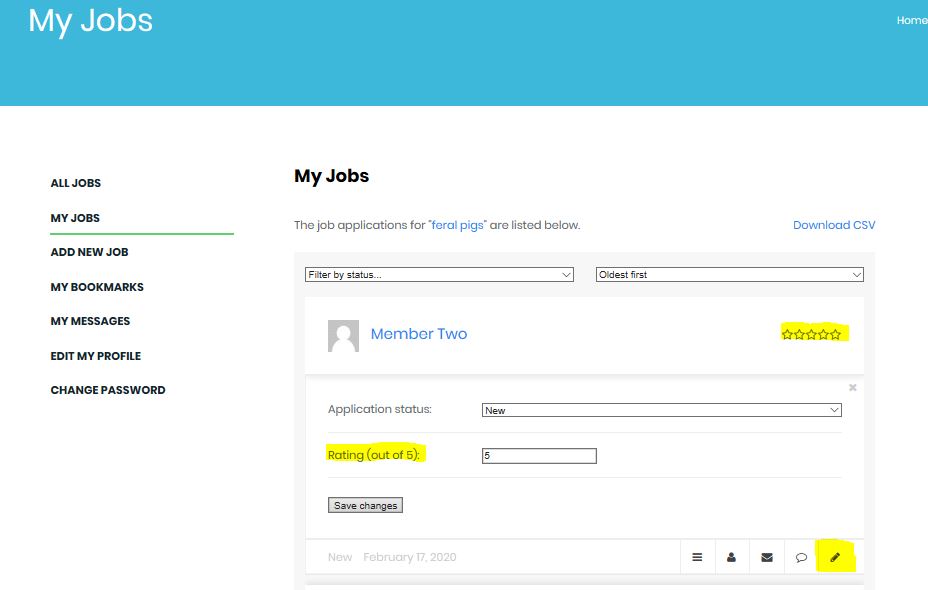
The other important thing that you can do after selecting this icon is to provide us with a rating on the performance of the member during and/or after they have attended your property. By entering a rating from 0-5 the member will receive a star rating from you. This will help administrators of the program make sure that our members are maintaining a certain standard.