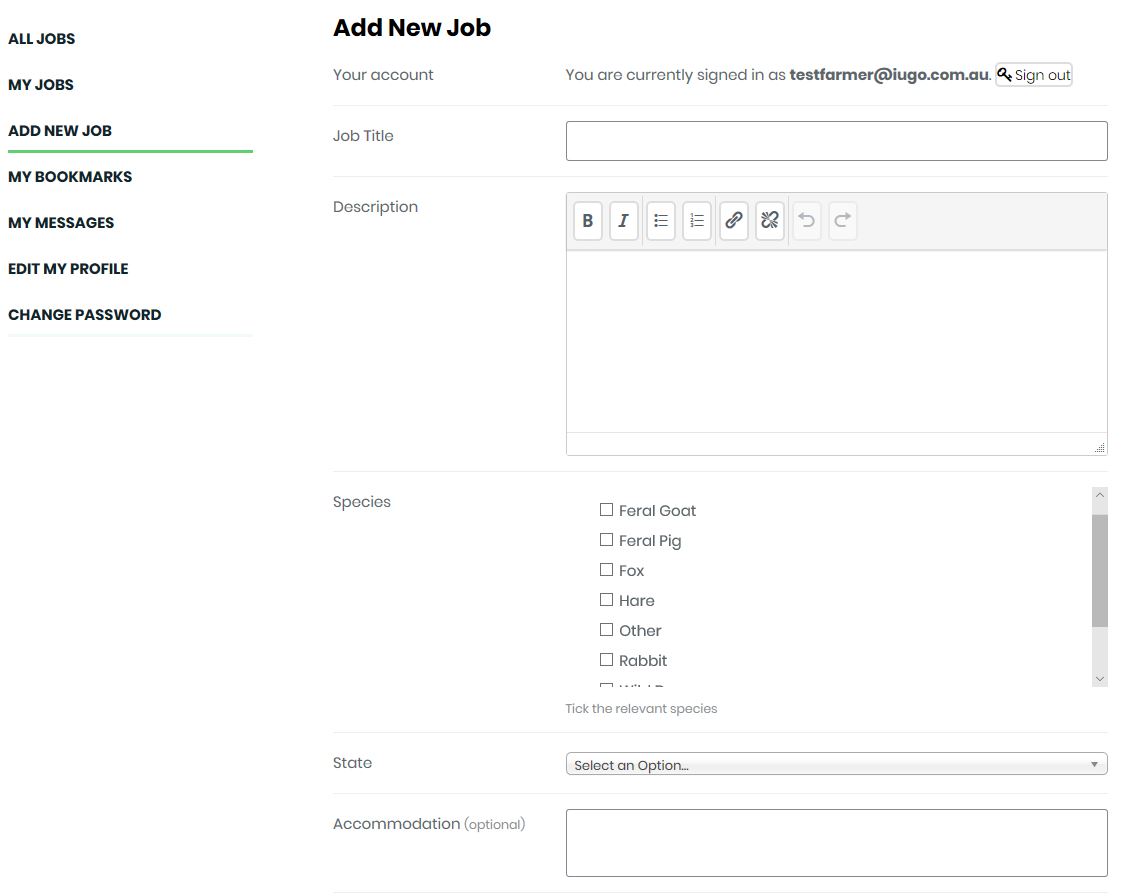
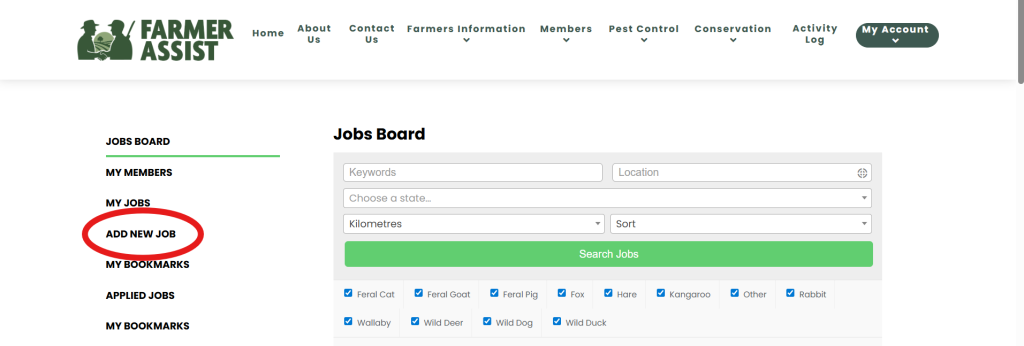
When entering information about your job, keep in mind that you should be as specific as possible. The more information you provide about your particular needs, the less you will be asked the same questions by volunteers and the more genuine interest you will receive from volunteers. You can select/tick several species that you may want help managing, as well as the specific problem at hand. This means you don’t need to include secondary species in your job title.
The Title of your job post should be very specific. For example, if you need help with a particular pest such as rabbits, you should type in ‘Rabbits’. The Description section allows you to expand and enter as much information as you want. Include all the relevant information that you want to tell a prospective volunteer about the job. If your job requires a damage mitigation permit, you should either hold one or be in the process of obtaining one. The Accommodation box will assist potential volunteers in planning a trip if they need to travel some distance to get to your property. By describing possible options in this section, you can help members with their trip planning. You need to enter the number of members you wish to have helping and an approximate location of your property. If you use the pinpoint marker on the map, you can move it to a location as near as you want to your property. For privacy reasons, we suggest that you do NOT put this marker on your property’s exact location. We recommend a nearby town or other close point of interest
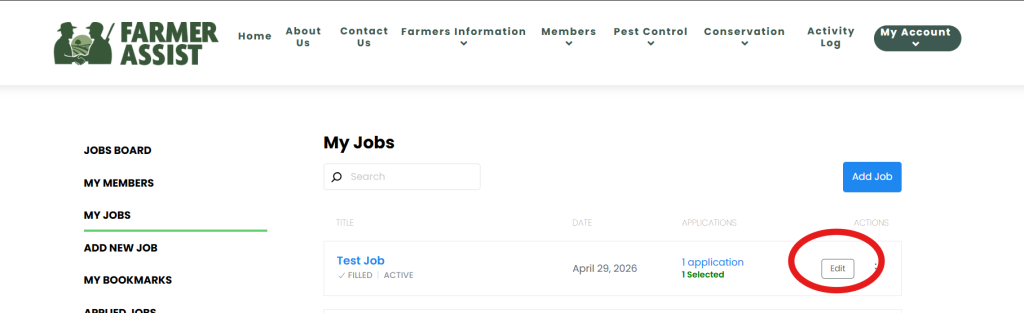
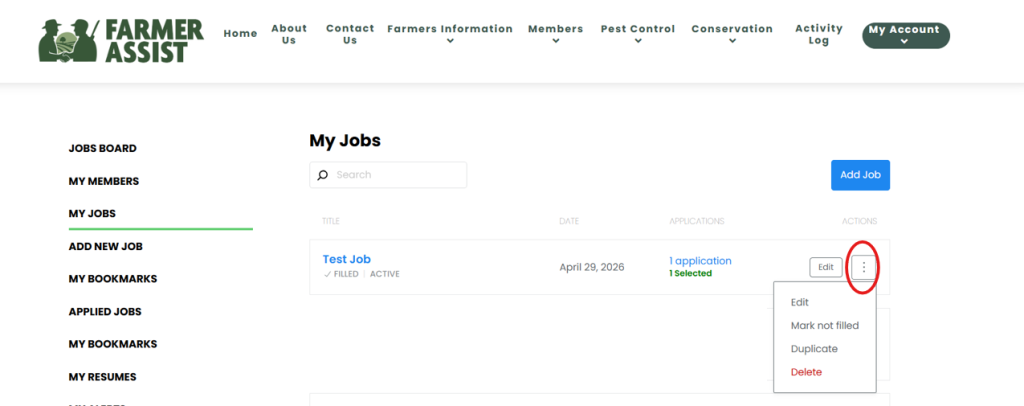
Once you have created your job, you can edit your job details or mark it as filled at any time.
Knowing how to do this is very important. Once your job goes live, there may be quite a lot of interest from volunteers wanting to help. It is advised that you monitor your job across the first few days, and when you receive a sufficient number of applicants to assess, you mark the job as ‘filled’ to prevent further applications. This will remove the ability for other volunteers to apply for your job, and gives you time to work through your current applicants to choose the right person.
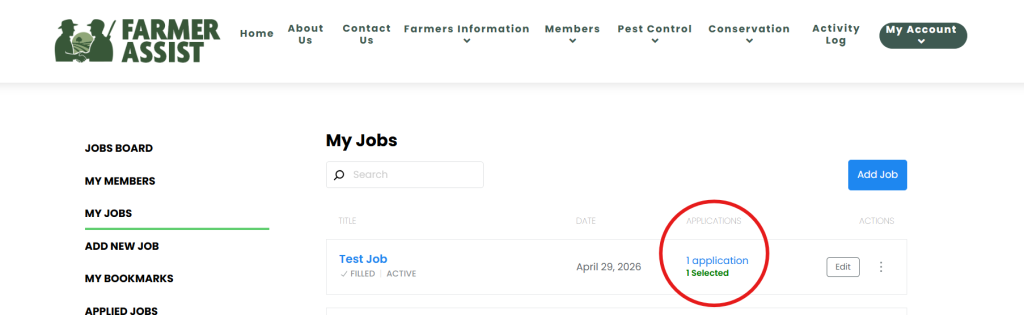
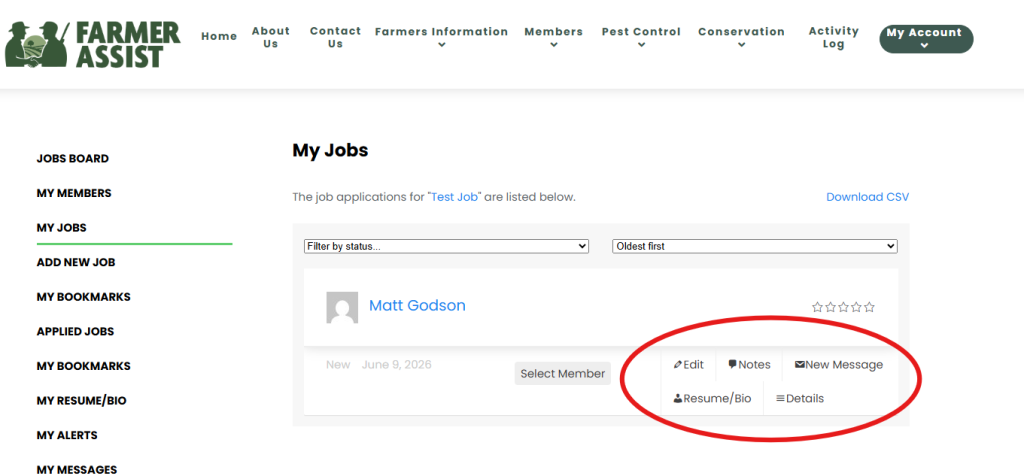
Clicking on the number of applications will display a list of all applications, with the earliest submission shown at the top. In the image on the left, several icons are highlighted, each providing access to different actions and information.
From left to right, these icons allow you to manage and review applications as follows:
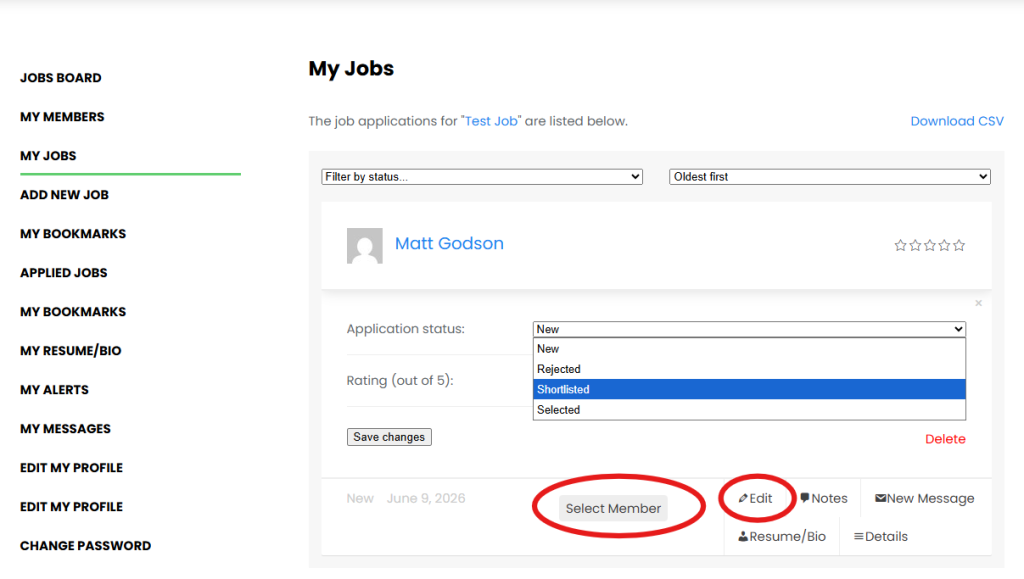
Edit: Allows you to reject or shortlist an application, and to rate the volunteer (out of 5) to provide feedback.
Notes: Enables you to record a private note about the application while you are reviewing it.
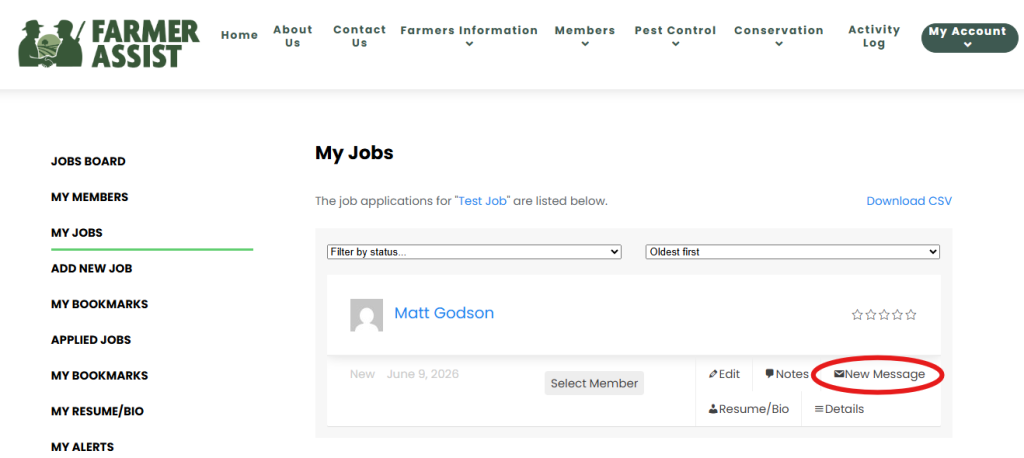
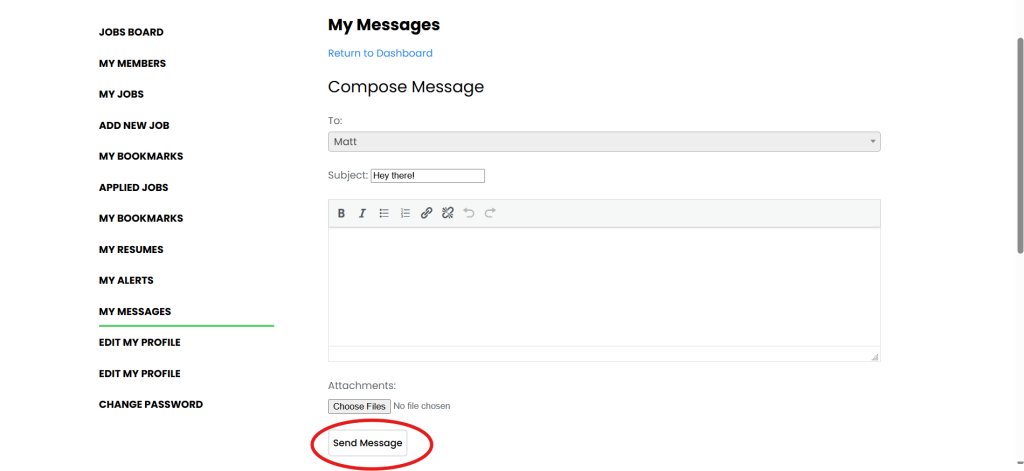
Messages: Connects you to the private messaging system, allowing you to send a direct message to the volunteer. Selecting this icon will take you to the relevant conversation in your My Messages area.
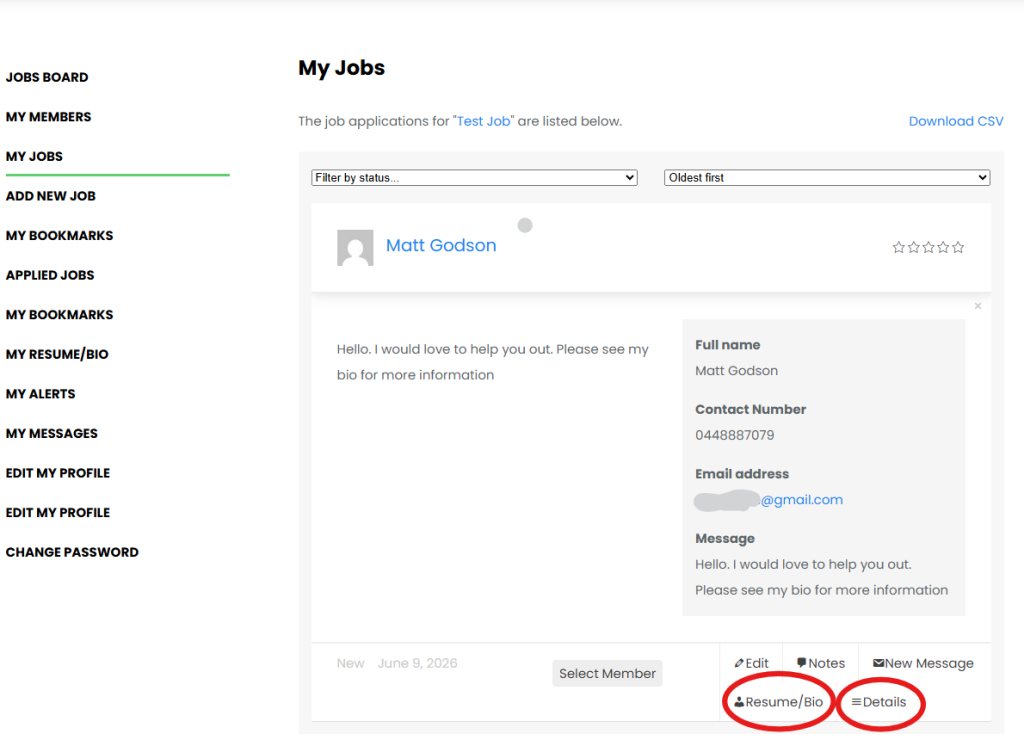
Details: Displays the application message submitted by the volunteer, which typically includes their contact details.
Additional icons may appear if the volunteer has created an online résumé as part of their profile or has attached supporting documents.
Hopefully, a potential volunteer has provided enough detail here for you to make a preliminary assessment of their suitability. They may also refer you to view a resume that they have submitted for more details about them and their experience.
The Notes icon allows you to record private notes for your own reference in relation to a selected application. These notes can include your assessment of the applicant’s suitability for the task and can assist with shortlisting decisions.
If you receive a large number of applications, the Shortlist function enables you to assess volunteers and identify those you are considering further, while also allowing you to reject applicants who are not suitable. Do this by changing the Application status from New to Shortlisted as discussed in the next section.
When multiple volunteers have been shortlisted, you can use the Filter function above the list of applications to view only those applicants you have identified as potentially suitable. This helps streamline the review process and avoids the need to reassess all applications again.
If you determine straight away that an application is unsuitable, you can also reject it within this function.